
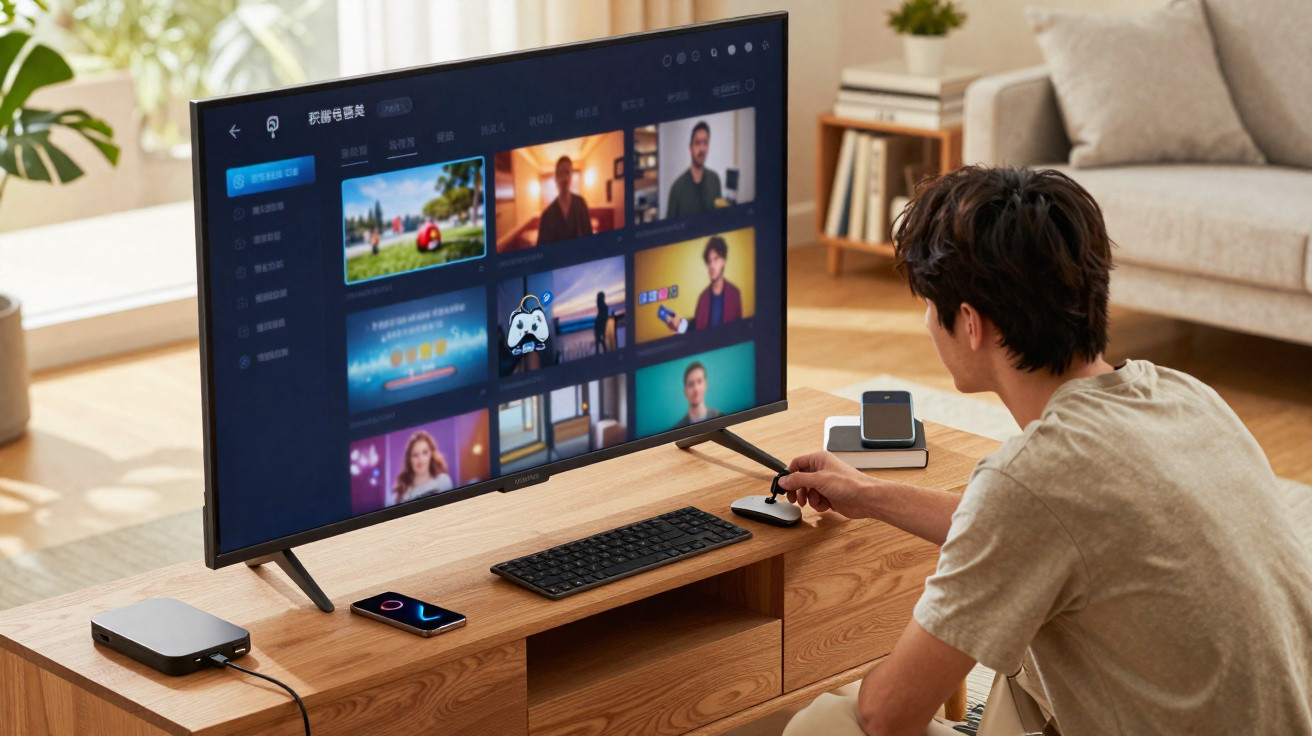
Most people give it little thought until they connect a memory stick perhaps once a year. However, that unassuming TV USB port can transform an ordinary television into a versatile media hub, recorder, charging point and, in certain cases, a simple work or gaming setup.
More than holiday photos: what the TV USB port really does
On most current televisions, the USB port is presented as an easy way to display photos and videos from a memory stick or hard drive. This is certainly true and generally works reliably: connect a USB drive, choose “Media” or “USB” with the remote, and your files will normally be shown.
That is only a small part of what it can do, though. Many TVs can use USB connections to expand storage, record live television, power devices and attach accessories including keyboards, mice and game controllers.
That anonymous USB port can quietly turn your TV from a passive screen into an active, customisable media centre.
Turning USB into extra storage and a TV recorder
Smart TVs can run out of room surprisingly fast. Install several apps and one or two streaming services, and there may soon be no space left for anything else. Where the television supports it, a USB drive can solve the problem.
Expanding storage in a few minutes
Many Android TV, Google TV and other smart TV platforms allow a USB stick or hard drive to be “adopted” as additional internal storage. After it has been formatted, the television can use it for installing further apps, saving cache files and holding data that exceeds the built-in memory.
- Choose a USB 3.0 drive for faster speeds and better app performance.
- Look in the TV settings for an option such as “format as device storage” or “adoptable storage”.
- Leave the drive connected permanently, because certain apps may fail to open without it.
This straightforward measure can keep an older or lower-cost smart TV working well for years longer rather than becoming painfully slow.
Your USB stick as a digital recorder
On many models sold in Europe and Asia, the USB port can also become a recording device. When the TV has PVR (personal video recorder) support, you can attach a drive to record live broadcasts from terrestrial or cable channels.
In this arrangement, the USB drive acts much like a modern VCR:
- Pause live TV during a film or match, then resume it later.
- Set late-night programmes to record straight from the programme guide.
- Watch recorded programmes again without needing a separate set-top box.
With a compatible TV, a cheap USB hard drive can replace a bulky recorder box and subscription-based recording services.
There is a limitation, however. Most televisions encrypt their recordings, meaning they can only be played on the TV that made them. In most cases, you cannot transfer the film to a PC and retain it permanently. The restriction is connected to broadcasting rights.
Playing your own videos, photos and music
The best-known TV USB port function remains useful: playing media files directly. Rather than streaming every item, you can view content stored locally without buffering or broadband restrictions.
Commonly supported file types include:
| Type | Common formats |
|---|---|
| Video | MP4, MKV, AVI, MOV |
| Audio | MP3, AAC, FLAC (on some models) |
| Photos | JPG, PNG, sometimes HEIF |
Insert a memory stick containing legally obtained films, family videos or offline training footage into the back of the television for immediate access. Local playback can be especially welcome in homes with unreliable broadband or restrictive data allowances.
Turning the TV into a basic workstation
USB is not solely intended for storage. Connected to suitable accessories, the television can function somewhat like a large monitor with a basic computer-style interface.
Plugging in a keyboard and mouse
Certain smart TVs work with USB keyboards and mice. After connecting them, you can enter search terms, complete sign-in forms or write emails in web apps far more quickly than by relying on the remote and an on-screen keyboard.
A physical keyboard can turn tedious text entry on a TV into something almost as quick as using a laptop.
This arrangement is useful when you are:
- Configuring several streaming accounts while installing a new TV.
- Reading long articles or carrying out research in the television’s built-in browser.
- Typing Wi-Fi passwords or complicated usernames.
Using the TV as a presentation screen
For classroom sessions or work presentations, a basic USB-C-to-USB-A adapter may be unexpectedly useful. Many newer tablets and smartphones can output video through a compatible adapter, which can then connect to the TV’s USB or HDMI ports.
After connecting it, you can mirror your phone screen on the television. Documents, slides, product demonstrations and training videos are displayed at a size suitable for a small group, with no need to wheel in a projector.
Hidden power outlet: charging devices from your TV
One feature people often discover accidentally is that a TV USB port can frequently charge mobile devices. While the television is switched on, and in some cases even in standby, the port supplies power to anything attached to it.
It is useful when:
- You have misplaced your usual phone charger.
- Every wall socket is occupied and you only need a slow top-up.
- You want to charge a tablet or streaming dongle unobtrusively behind the television.
- You are staying in a temporary flat or hotel room with very few sockets.
The TV will not replace a fast charger, but it offers a handy emergency power source that many people ignore.
Most television USB ports provide roughly 5V at 0.5 to 1 amp, which is far less power than modern fast chargers offer. Charging will therefore be slow, while some larger tablets may merely hold their existing charge. Nevertheless, it is adequate for overnight charging or for powering a remote control, wireless headphones or a streaming stick.
Gaming without a full console
Although a television cannot compete with a dedicated gaming setup, USB can still enable straightforward gaming. Some smart TV platforms offer simple games through their app stores, and connecting a USB game controller can make these titles considerably easier to play than using the normal remote.
In certain situations, gamepads designed for PCs or older consoles can also be attached if they use standard USB protocols. Casual racing, puzzle and platform games can then become family-friendly entertainment without adding another box below the TV.
Practical tips, limits and small risks
Before using the television as though it were a full computer, it is worth considering several technical points:
- Check the manual: feature support differs considerably between brands and regions, so not every TV supports PVR recording or keyboards.
- Use quality drives: low-cost USB sticks can corrupt apps or recordings; choosing a reputable brand lowers this risk.
- Mind power draw: external hard drives may require their own power supply because the TV USB port might not deliver sufficient current.
- Always eject safely: use an “unmount” or “remove USB” option where available, particularly when the drive is used for recordings.
There is a security consideration too. Connecting an unfamiliar USB drive to any device brings a small possibility of malware or unforeseen behaviour. TVs are targeted less often than PCs, but some use Android or Linux behind the scenes and could theoretically be compromised. Using only your own drives and accessories is an easy precaution.
Making the most of that overlooked port
Viewing the TV USB port as a Swiss Army knife makes its usefulness easier to appreciate. It may serve as a recorder one evening, a charging point the following morning, a presentation hub in a meeting and a way to play home videos for the family at the weekend.
For households seeking to cut down on the boxes and cables beneath the television, getting more from this small connector can postpone the purchase of new hardware. A modest outlay on a dependable USB drive, keyboard or gamepad can create a more adaptable, personalised television setup without replacing the screen itself.


Comments
No comments yet. Be the first to comment!
Leave a Comment