
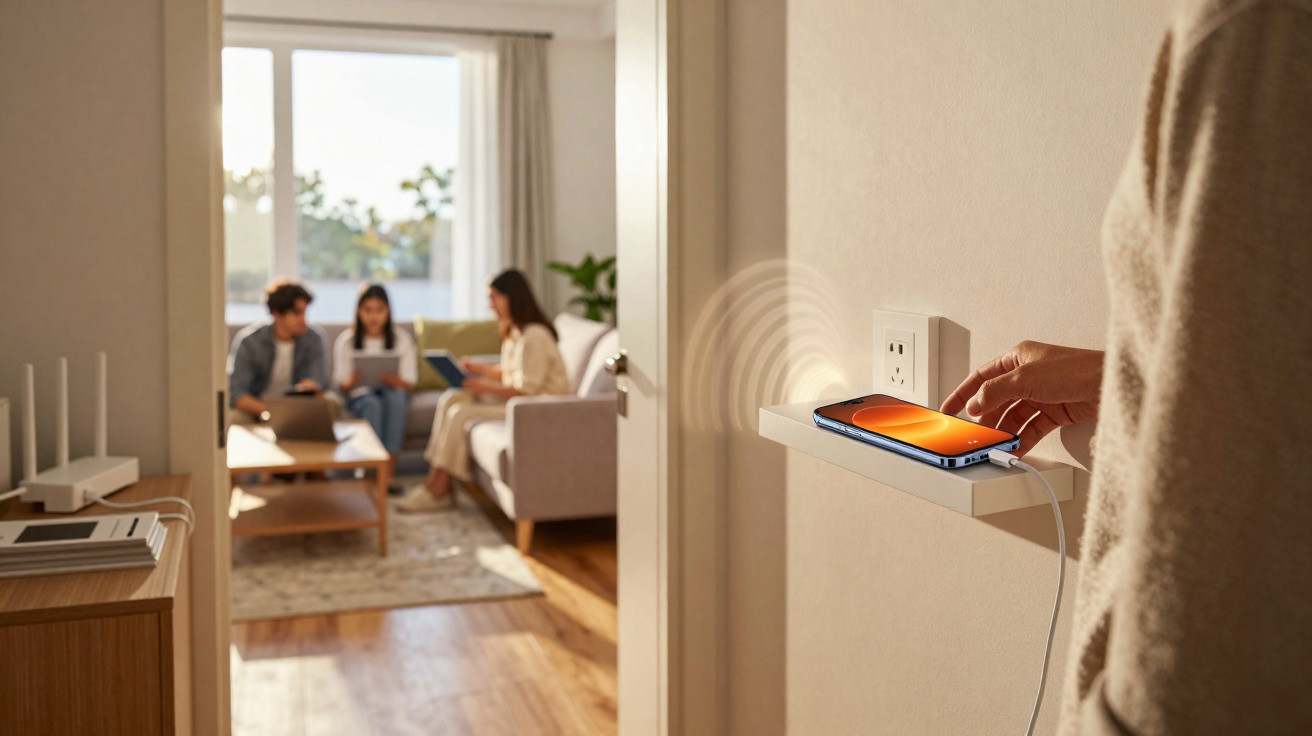
Many households have free Wi-Fi potential sitting unused in a drawer.
A weak wireless signal is frustrating when streaming, working from home or gaming. Before immediately buying an expensive mesh set or repeater, it is worth checking any old Android smartphones and tablets. With just a few adjustments, these devices can serve as a Wi-Fi booster – particularly useful when money is tight or only one area of the home has poor coverage.
Why Wi-Fi struggles in many homes
Almost every modern broadband router promises “strong Wi-Fi”. Yet, in day-to-day use, many people still encounter dead spots around the home. There are several possible causes:
- thick concrete or brick walls
- several storeys in the house
- long distances between the router and connected device
- interference from microwaves, baby monitors or neighbours’ Wi-Fi networks
- an unsuitable router location, such as in a hallway or consumer unit cupboard
The result is familiar: videos constantly buffer, video calls drop out, and smart TVs or consoles report connection errors. A conventional Wi-Fi repeater can address the issue, but it can easily cost €30 to €80 – and may even appear as rented equipment on the provider’s bill. Anyone with retired Android devices already at home can often avoid that expense.
“An old Android smartphone can extend your home wireless network exactly where needed – without buying anything new.”
Requirements: when an old Android device is suitable
Not every ageing handset is a good candidate for use as a booster. A few requirements need to be met for this DIY solution to make a genuine difference.
Which Android version is required?
The key requirement is a setting usually called “Hotspot”, “Tethering” or “Mobile Hotspot”. It has been built into Android for many years, so most smartphones running roughly Android 7 or 8 onwards include it. On an exceptionally old or heavily modified device, however, the feature may be absent or hidden away.
Wi-Fi hardware and battery condition
The smartphone should still be able to maintain a reliable connection to the home Wi-Fi network and must not overheat after 20 to 30 minutes of continuous use. A reasonably healthy battery is helpful, even if the handset will later remain connected to power permanently. For safety reasons, devices with severely swollen batteries or visible damage should no longer be left running continuously.
Choosing a location for the smartphone
Placement matters greatly. The device should:
- still receive a good signal from the router
- be as close as possible to the problem area at the same time
- be within reach of a mains socket
A hallway, halfway up the stairs or a shelf between the living room and home office often makes a suitable new wireless node.
How to turn an old Android smartphone into a Wi-Fi repeater
Essentially, the handset acts as an intermediary: it connects to the router over Wi-Fi and rebroadcasts the connection through its own hotspot. Set-up takes only a few steps.
Step 1: clear and prepare the smartphone
- Reset the device to factory settings, where possible, to remove apps and old data.
- Install any system updates that are still available.
- Lower the screen brightness, set a short screen timeout and uninstall unnecessary apps.
- Enable power-saving mode provided it does not restrict the hotspot.
This helps the device run more smoothly, use less energy and remain unobtrusive in everyday life.
Step 2: connect to the router’s Wi-Fi network
Next, connect the old smartphone to the home Wi-Fi network as normal:
- Open Settings and go to “Wi-Fi” or “Network & Internet”.
- Select the home wireless network and enter its Wi-Fi password.
- Check that websites or streams work reliably on the device.
Without a stable connection to the router, the phone cannot pass on a useful signal later.
Step 3: enable the mobile hotspot
The handset can now become a small access point:
- Find the “Hotspot & Tethering” or “Mobile Hotspot” section in Settings.
- Turn on “Wi-Fi Hotspot”.
- Set a network name (SSID) and password – make them recognisable but secure, ideally using at least 12 characters.
- Choose the frequency band: many devices offer 2.4 GHz for greater range and 5 GHz for higher speed.
Some smartphones automatically switch off the hotspot when no device is connected. It is often possible to disable this energy-saving setting or extend the timeout, so checking the advanced options is worthwhile.
Extending Wi-Fi effectively: where the Android smartphone helps most
For the arrangement to be effective, position the old device carefully. The best spot is usually where the router’s signal is still reasonably strong, but coverage in the intended room is already beginning to fade.
Typical everyday situations
- Home workspace in a back room: Place the smartphone in the hallway or neighbouring room to serve a laptop and printer.
- Streaming in the bedroom: Put the handset on the bedside table or a shelf beside the door.
- Balcony or patio: Position the improvised repeater indoors on the windowsill to carry the signal outdoors.
- Cellar or loft: If either space is used as a workshop or hobby room, place the device near the stairs.
“The best location is usually around halfway between the router and the Wi-Fi dead spot – a clear line of sight helps even more.”
Limits of the DIY Wi-Fi repeater: when a proper repeater is better
As clever as using an old smartphone may be, it also has drawbacks. The device was not designed to operate continuously as a network node. Under heavy load or with many devices connected at once, the hotspot can struggle.
Users should expect some limitations:
- A limited number of simultaneous clients, often 5–10 devices.
- No optimised roaming as offered by genuine mesh systems, which can mean brief connection interruptions when moving between rooms.
- Android may limit the hotspot when the battery level is very low or the device overheats.
- Depending on the handset, the hotspot may support only 2.4 GHz, reducing potential speeds.
For consistently stable high-speed Wi-Fi in large houses, a robust repeater or mesh set is usually unavoidable. However, for isolated dead spots in flats, the smartphone is often entirely sufficient.
Security considerations: keeping the network protected
Anyone leaving an old Android device permanently connected to their home network should take security seriously. Older models in particular may no longer receive patches, which introduces a degree of residual risk.
Practical protective measures
- Use a strong hotspot password with at least 12 to 16 characters, including numbers and special characters.
- Do not install unnecessary apps, especially from unknown sources.
- Link a Google account only when required – when in doubt, use it as a “device without an account”.
- Use the hotspot only within your own home, rather than sharing it with neighbours in a block of flats.
If you have a modern router with a guest-network feature, the smartphone can also be connected to that guest network. This keeps the improvised repeater device logically separate from the main home network, reducing the potential attack surface.
Alternative uses: what else old Android devices can do
If using it as a Wi-Fi booster ultimately proves unconvincing, the smartphone can still be useful. Many households turn older devices into practical helpers:
- a baby monitor using a camera app
- a smart-home display for weather, timers and light control
- a music station connected to a speaker in the bathroom or kitchen
- a small security camera for the hallway or front door
Combined with improved Wi-Fi coverage, these options create appealing small projects without requiring the purchase of a new device.
Why trying an old Android smartphone as a Wi-Fi repeater is worthwhile in many homes
Repurposing an old Android smartphone as a Wi-Fi booster requires only a little time – and perhaps an inexpensive charging cable. In many flats, this is enough to transform a previously frustrating spot into a fully usable room, whether for working from home or watching a series.
If testing reveals that the need is greater, you will understand the wireless coverage problems much better and can invest more precisely in a professional repeater or mesh system. Until then, the old handset can work quietly from a shelf, proving that electronic treasures in a drawer can do more than simply collect dust.





Comments
No comments yet. Be the first to comment!
Leave a Comment